Sea Saba Dive Log App
The Sea Saba Dive Log App is an in-house developed application designed for logging diving activities and recording sightings of specific marine species as identified by the Saba Marine Park. This guide provides detailed instructions on how to use the app effectively.
Warning
This guide reflects the updated Dive Log app following migration. The correct link is https://sea-saba-self.vercel.app/. Please disregard old links.
User Registration
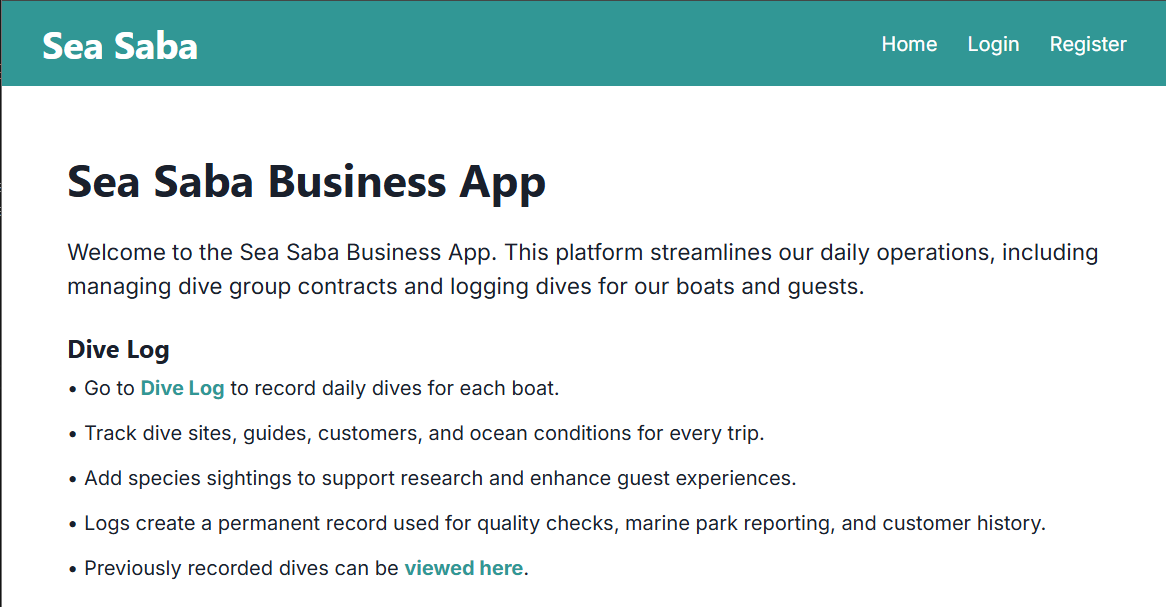
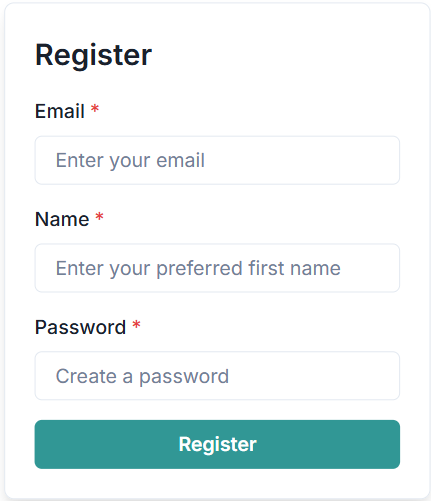
Desktop
- Click the Register button at the top-right of the screen and follow the prompts.
- After registering, an admin must assign privileges before you can log dives or view entries.
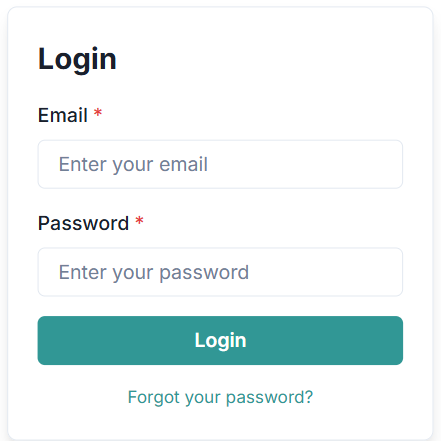
- To reset your password, open the Login menu, enter your email, and click the Reset Password link at the bottom of the form.
Mobile
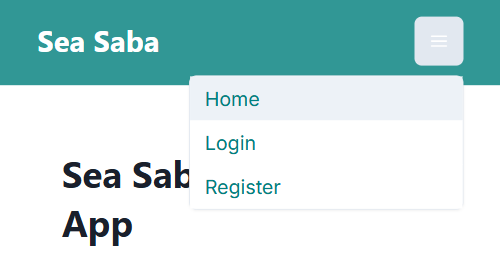
- Tap the menu button (three horizontal lines in the top-right).
- Select Register and follow the prompts.
- Use the Reset Password link on the login screen if necessary.
User Profile
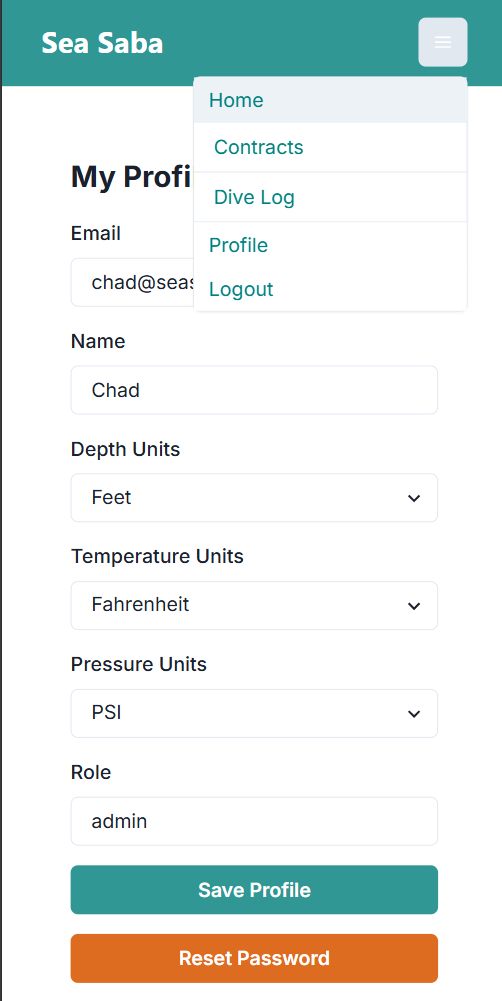
- Go to the Profile menu.
- Update your information: Name, password, and preferred units.
- Check your role: If it shows "viewer", you will not be able to use the app — notify an admin to update your role.
- Units: The app defaults to metric but will convert values to imperial if selected.
Logging a Dive
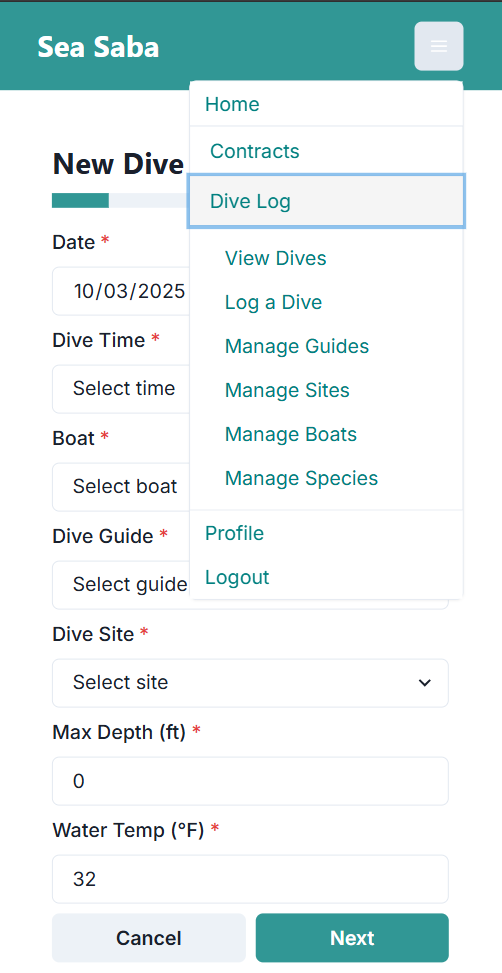
- Navigate to Dive Log: From the home page, click Dive Log — Log a Dive in the navbar, or use the Dive Log link on the home page.
- Complete the form: Fill out the multi-step form to log your dive and sightings.
- Review before submitting: Check your entry on the confirmation screen.
Note
If you see NaN (Not a Number) in a numeric field (e.g., temperature or depth), simply type over it with the correct value.
Viewing Previous Entries
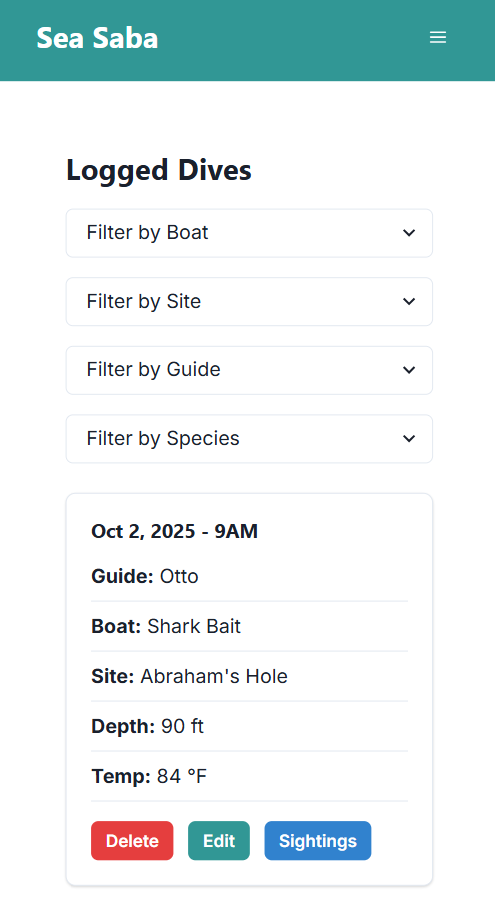
- Navigate to View Dives: From the home page, click Dive Log — View Dives in the navbar, or use the View Dives link on the home page.
- Sort entries: By boat, dive site, dive guide, or species.
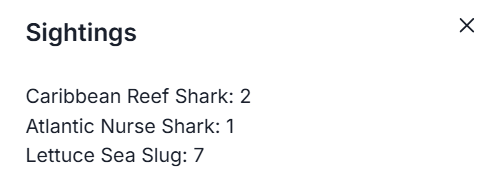
- View sightings: Click the Sightings button to view species recorded for a dive.
- Edit entries: Update dive information or edit sightings as necessary. Only admins or the user who created the entry can make edits.
Warning
Delete an entry only if entered in error. Deletions are irreversible.
Important Notes
- The app is designed to log only species of concern as identified by the Saba Marine Park.
- Each dive guide can log only one entry per dive site, per date, per dive number.
- All dive logs are displayed on the main Sea Saba website.
- Notify a manager or admin if dive sites or species lists need to be updated.
Warning
All dives must be logged by the end of each day.